
Offers banner
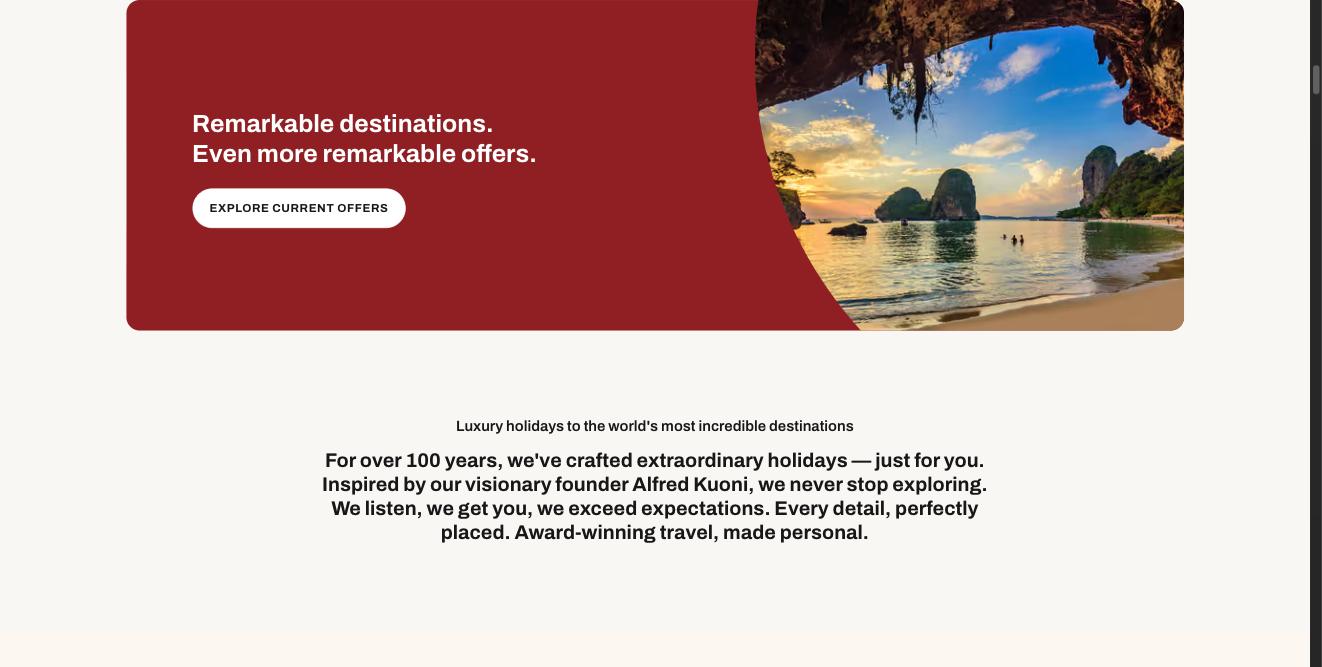
The large red panel with a photo cut into a curve on the right, and a white button.
What makes it this section
Picks the large sale-red banner. photo and solid are the other two looks.
The panel's colour.
What a visitor sees
What each field controls
The Field column is the label as it appears in Contentful; under it, the field's id, for talking to a developer. The number matches the marker on the screenshots above.
| # | Field | What it controls | Notes |
|---|---|---|---|
1 | Internal name internalNamerequired | Nothing on the page. | — |
2 | Eyebrow (small text above heading) eyebrow | The small line above the heading. | Up to 60 characters. |
3 | Heading (optional) title | The band's heading. | Up to 90 characters. |
4 | Description (optional) description | The paragraph under the heading. | Up to 240 characters. |
5 | Background colour backgroundrequired | The band's colour. | Choose one of: cream white brand-yellow sale-red dark |
6 | Background image (optional) backgroundImage | The full-width photo behind the band. | Only does anything when Appearance is "photo" or "offer". |
7 | Inner image (the round one) innerImage | The round portrait inside the band, beside the heading. | Square pictures work best — it is cropped to a circle. Leave it empty and no circle is drawn at all, rather than an empty ring. |
8 | Button cta | The button. | A link to a reusable Link / CTA entry. This is one of the few sections where the colour and style set on that CTA entry are actually used. |
9 | Also show a 'Call us' number callUsPhone | The "Or call us" line and phone number beside the button. | A link to a Text value entry, so the same number is used everywhere and changed in one place. |
10 | Appearance (choose the layout) variant | Which of the three band designs you get. | photo = full-width photo with an inset cream card. solid = a soft-yellow card, no photo. offer = the large sale-red offers banner. Same fields either way; only the look changes. Choose one of: photo solid offer |
Heading level (SEO tag) / Heading style / Heading colour headingLevel / headingVariant / headingColor | The heading's importance, size and colour. | — |
Other entries this section needs
| Content type | Why you need it |
|---|---|
| Link / CTA | The button. On this section the colour and style set on the CTA entry ARE used, unlike most rows. |
How to change it, step by step
Find the entry
Search Contentful for "Homepage — Offers banner" and open it. You can also reach it from the Homepage entry — it is in the Sections list, in page order.
Change what you need
Edit the fields listed above. Contentful saves as you type, but saving is not publishing.
Publish this entry
Change status → Publish, top right. Until you do, the site keeps showing the previous published version.
Publish anything new you linked
If you added a card or a CTA, open each one and publish it too. A draft card is skipped silently — the section renders without it and nothing tells you why.
Check the page
Open the home page. Changes appear within about 30 seconds. If nothing changed, the usual cause is an unpublished entry.