
Hero
The full-width banner at the very top of the page: a big headline over a photo or a video, with a button. It can hold more than one slide, and it rotates between them. The four cards that overlap its bottom edge belong to it too.
What a visitor sees
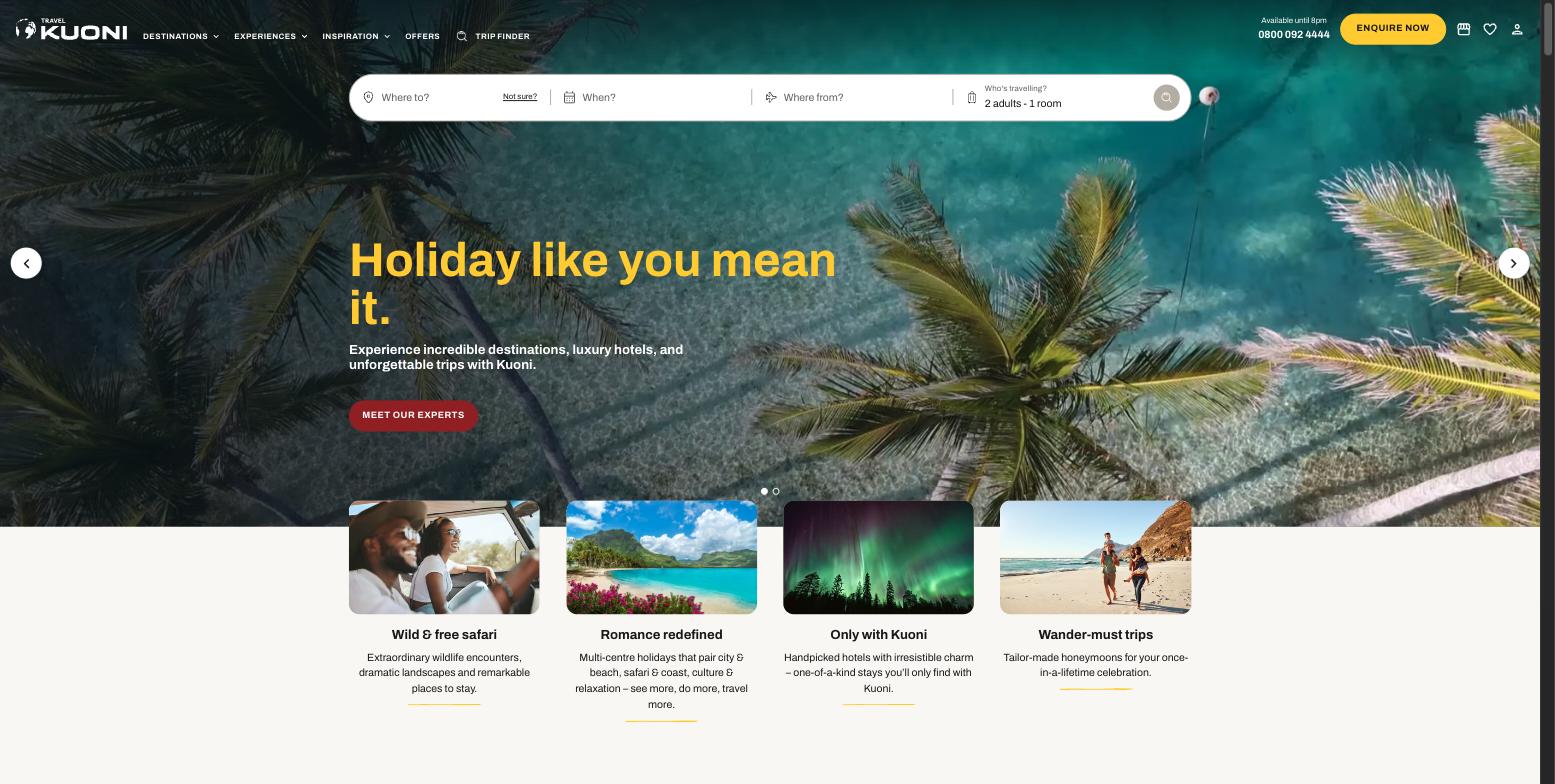
- 1
Headline — the big yellow text
- 2
Sub-text — the line underneath
- 3
The button (label and link)
- 4
Background image or video — fills the whole banner
- 5
Arrows. They only appear when there is more than one slide.
- 6
Dots — one per slide, added automatically
- 7
Promo card picture
- 8
Promo card heading
- 9
Promo card description
- 10
The underline. Yellow normally, red when the card's sale styling is on.
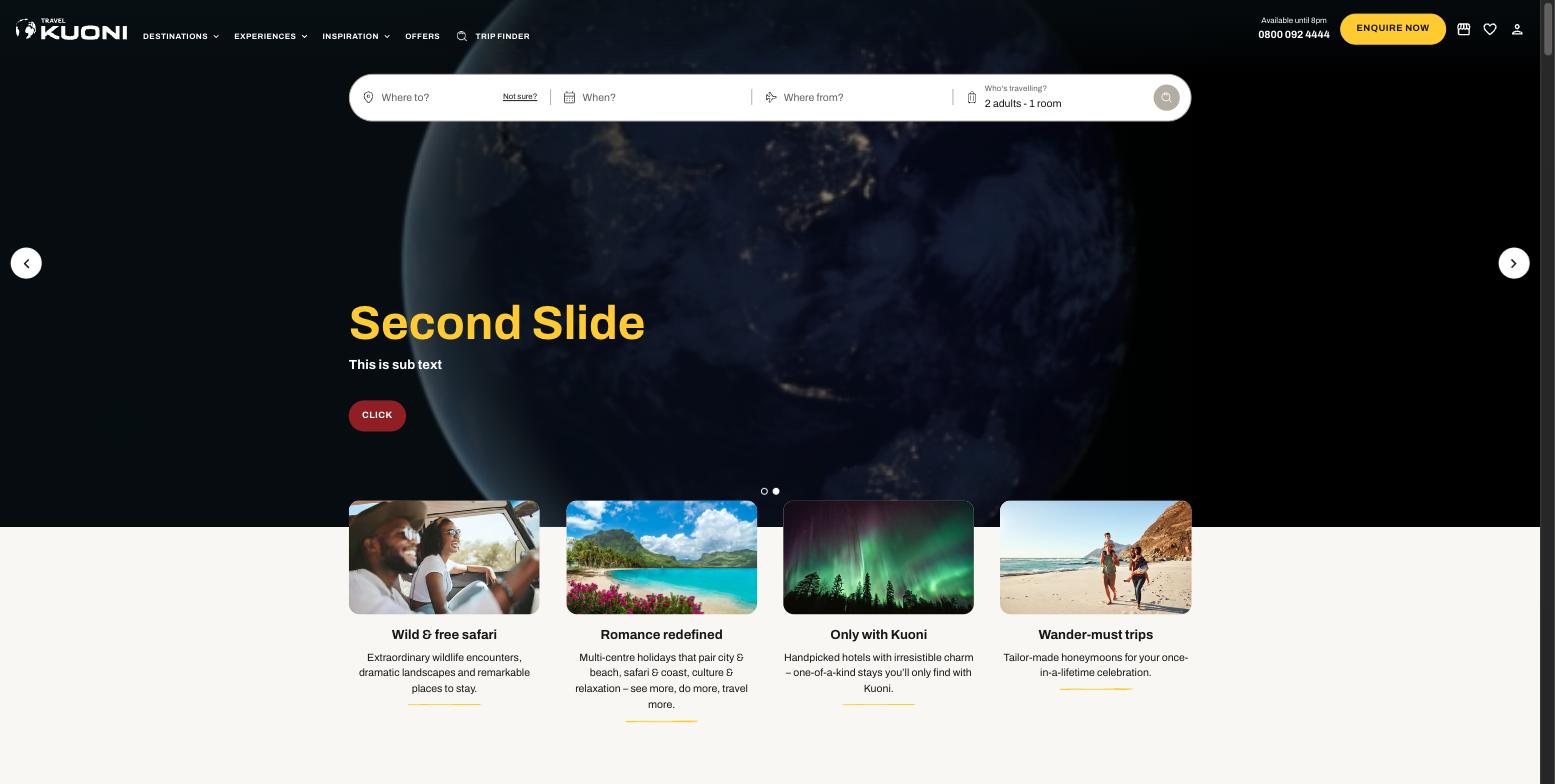
- 4
The same field, holding a video file
- 1
Headline
- 2
Sub-text
- 3
The button
The same thing in Contentful
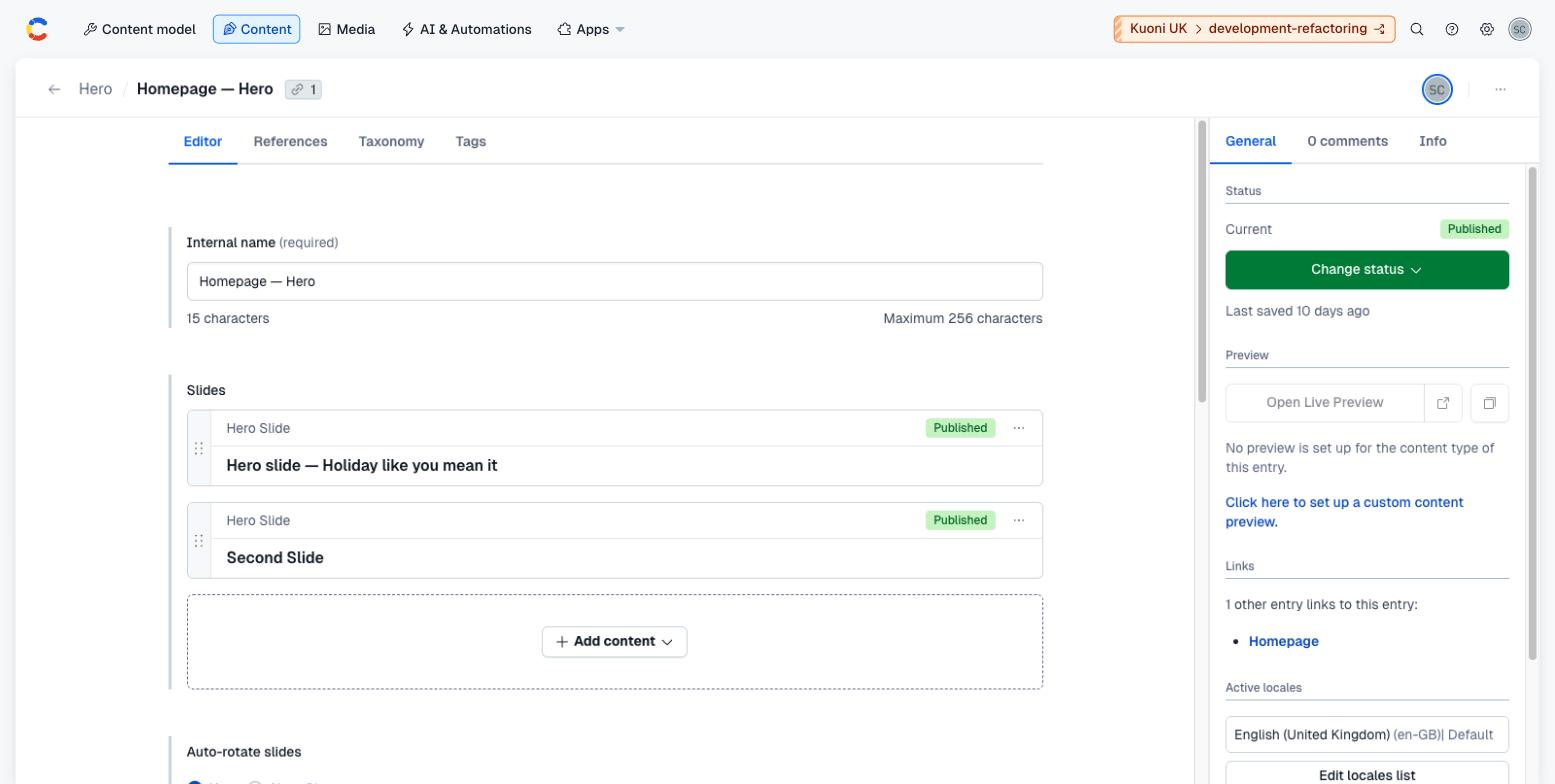
- 11
Internal name — for finding the entry. Not shown to visitors.
- 12
Slides — the list of slides
- 13
Slide 1, shown first
- 14
Slide 2
- 15
Add content — create or link another slide here
- 16
Change status — this is how you publish
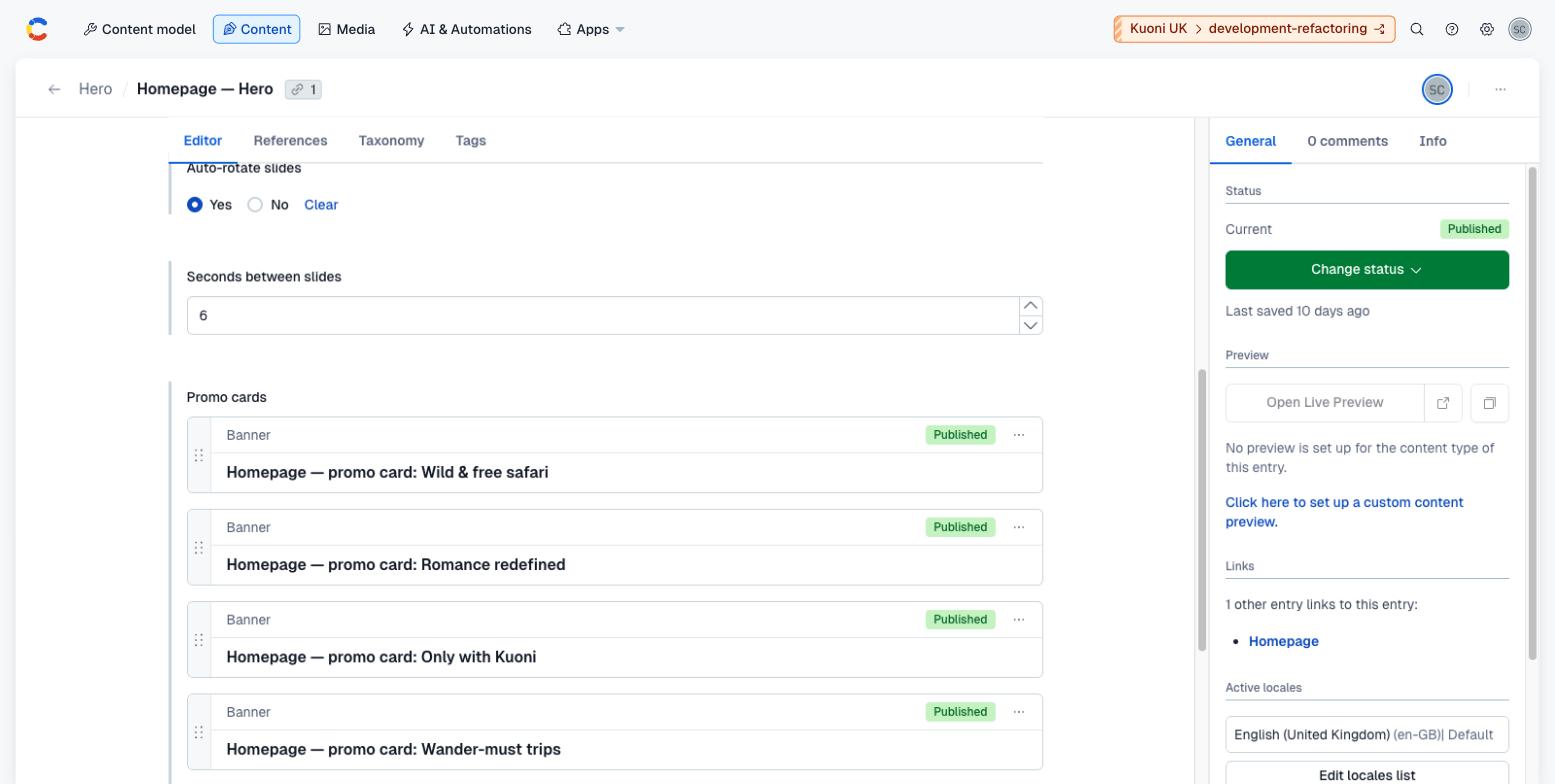
- 17
Auto-rotate slides — Yes or No
- 18
Seconds between slides
- 19
Promo cards — the row under the banner
- 20
One promo card
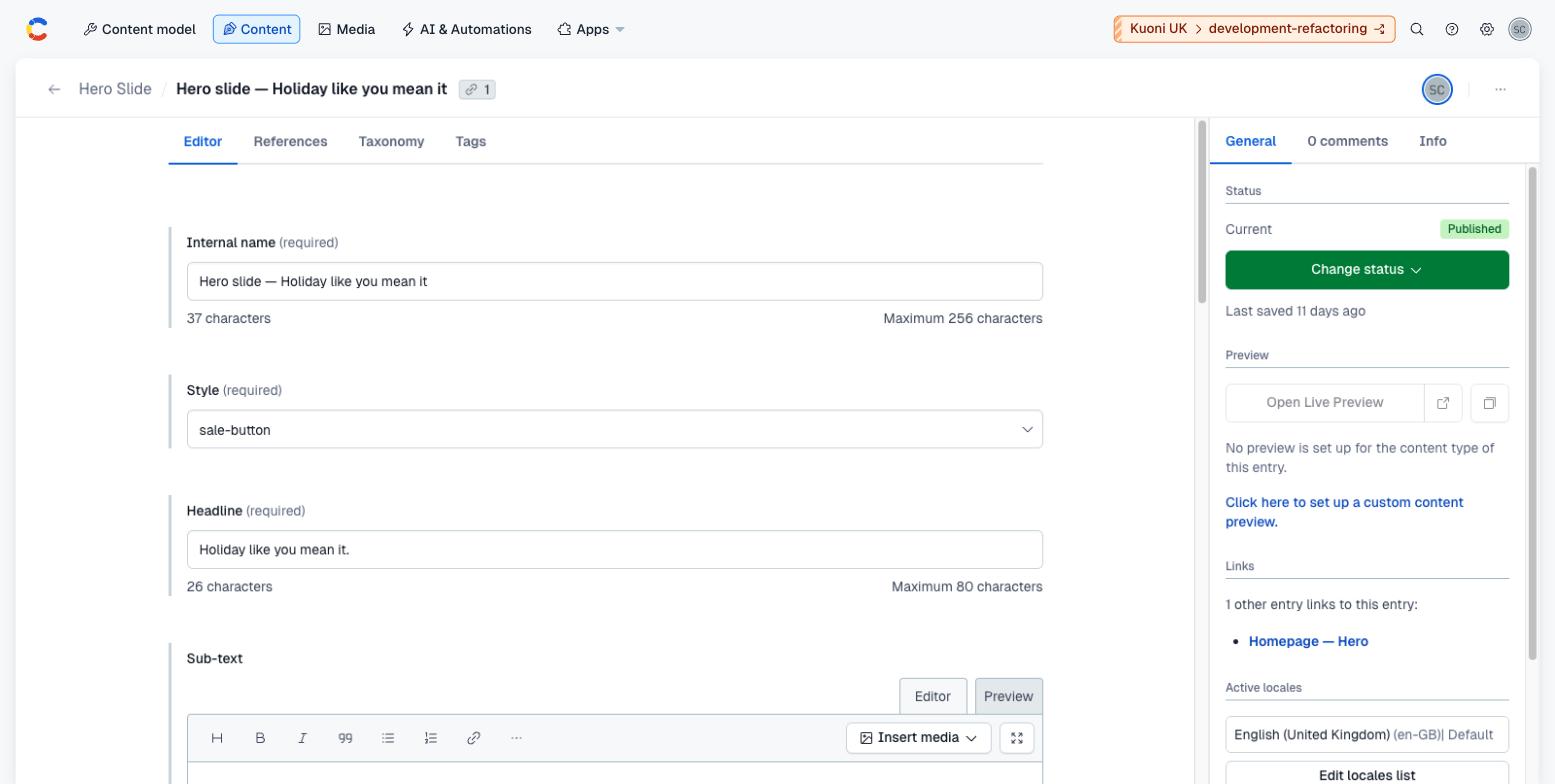
- 11
Internal name (required)
- 21
Style — the four looks. Explained below.
- 1
Headline (required, up to 80 characters)
- 2
Sub-text
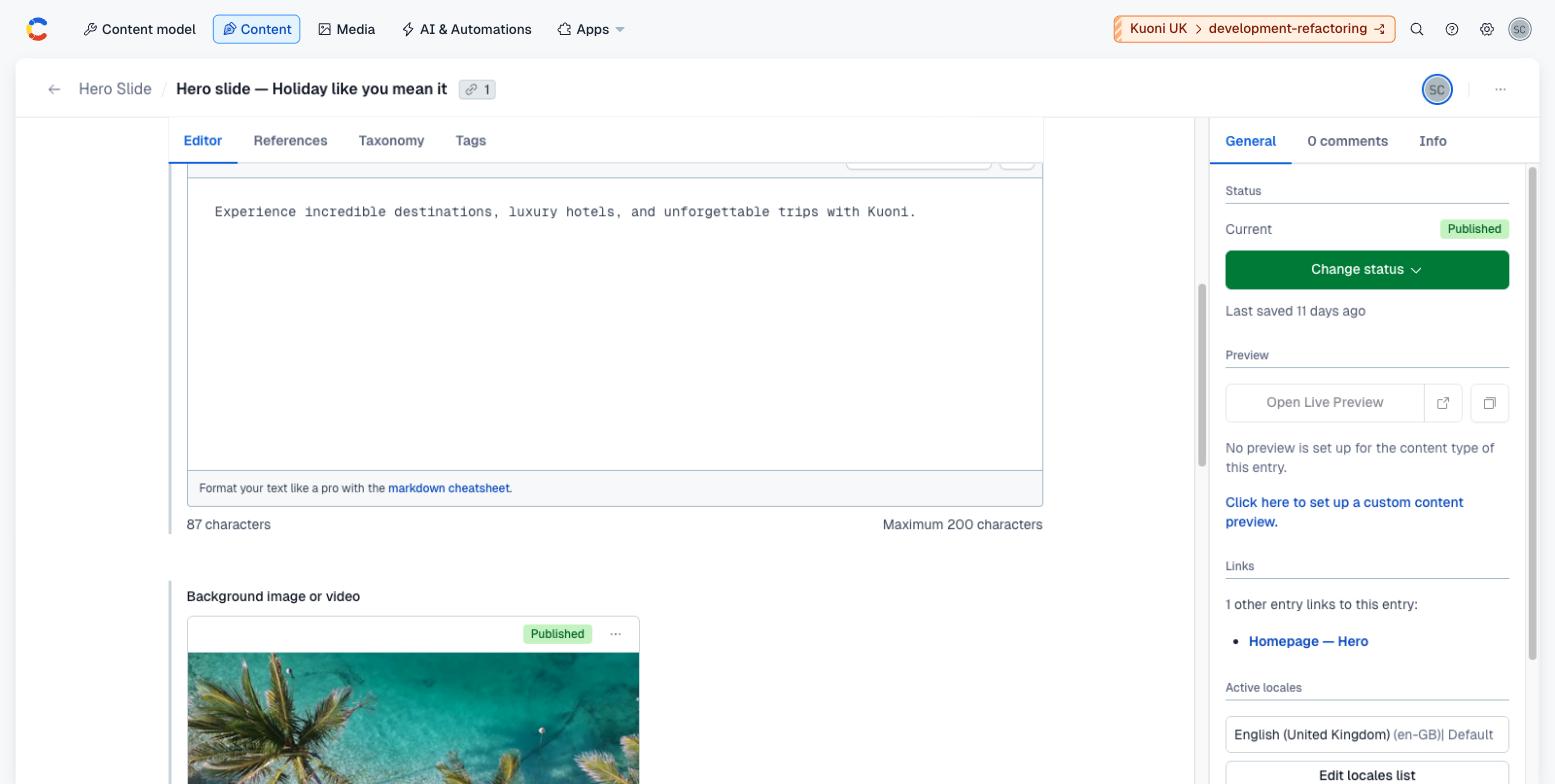
- 2
Sub-text, filled in
- 4
Background image or video — one field, either kind of file
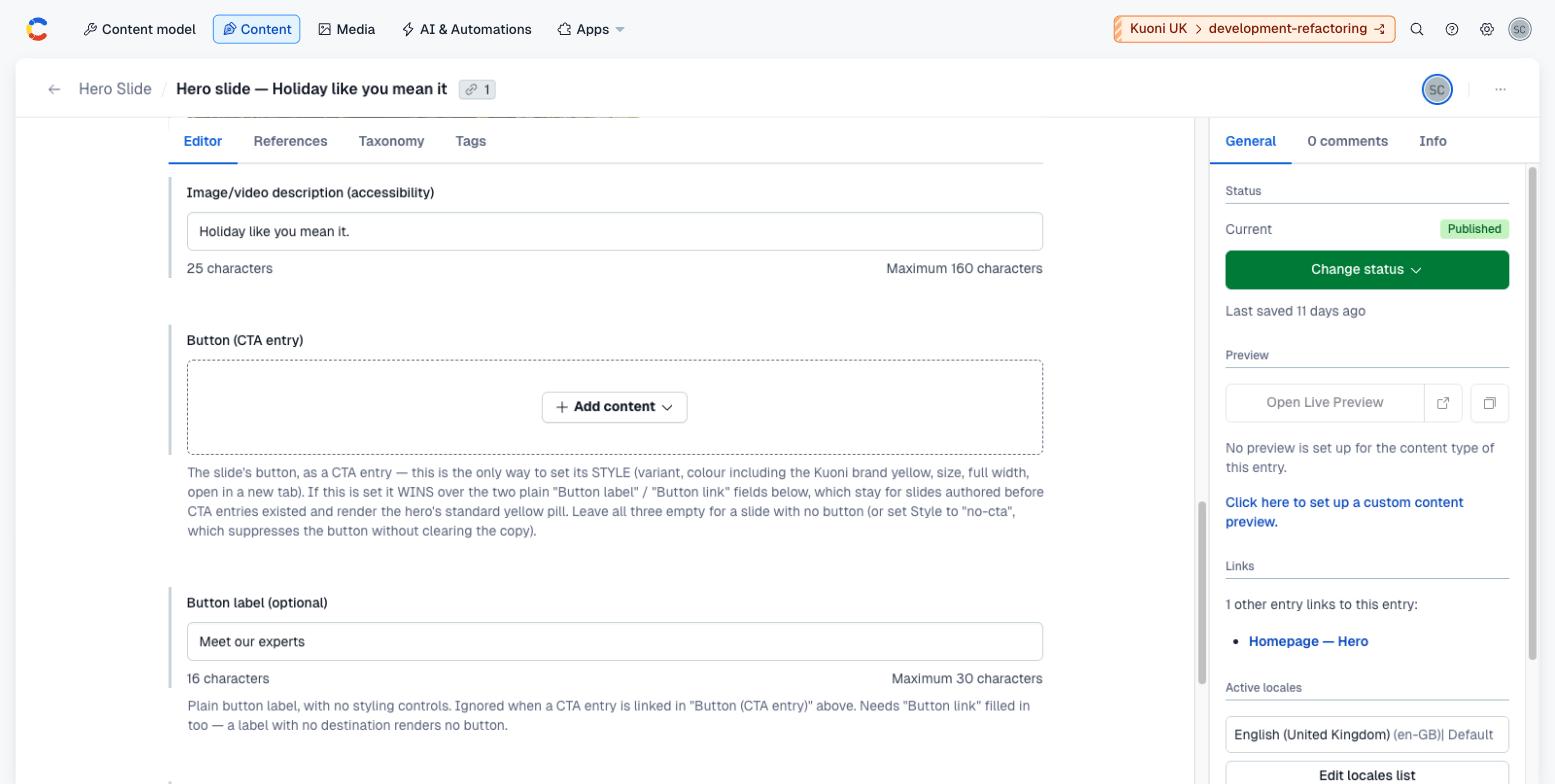
- 22
Image/video description — for screen readers
- 23
Button (CTA entry) — only if you need to restyle the button
- 3
Button label, and Button link below it
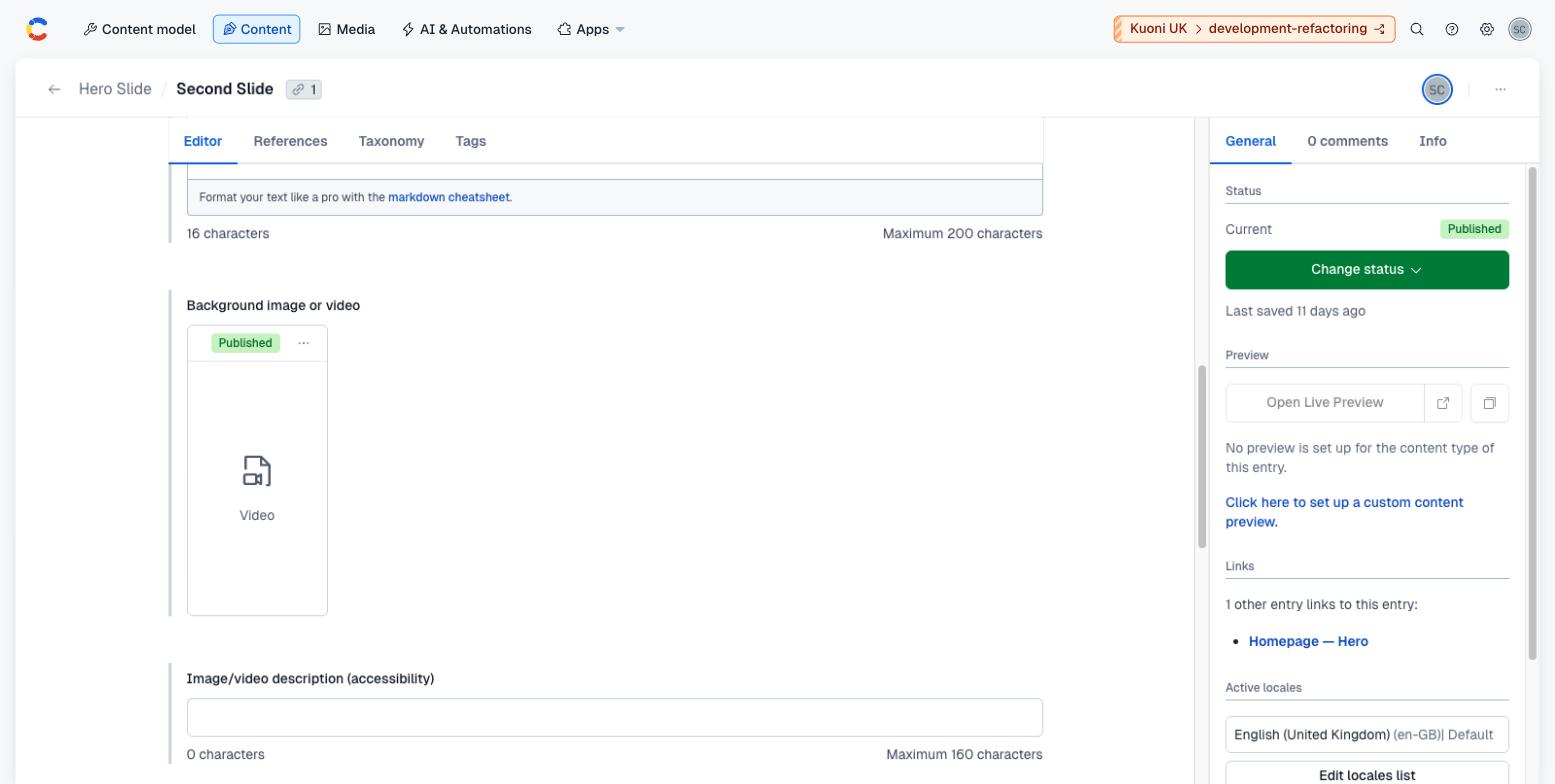
- 4
Background image or video — holding an .mp4
- 24
A video file looks like this, not like a picture
- 22
Empty here. Fill it in — it becomes the video's label for screen readers.
What each field controls
The Field column is the label as it appears in Contentful; under it, the field's id, for talking to a developer. The number matches the marker on the screenshots above.
| # | Field | What it controls | Notes |
|---|---|---|---|
11 | Internal name internalNamerequired | Nothing on the page. | The name you and everyone else sees when searching Contentful. Use the same shape as the others: "Homepage — …". |
12 | Slides slidesrequired | How many slides the banner has, and their order. | Drag to reorder. The first slide is the one a visitor sees, and its headline is the page's main heading, so put your most important message first. At least one slide is required. |
17 | Auto-rotate slides autoplay | Whether the banner moves on by itself. | Yes by default. It is ignored when there is only one slide, and for visitors who have asked their device to reduce motion. |
18 | Seconds between slides autoplayDelaySeconds | How long each slide stays. | 6 by default. Anything from 3 to 15. |
19 | Promo cards promoCards | The row of cards that overlaps the bottom of the banner. | Up to six. Four fit across a desktop; add more than four and small round page buttons appear. Each card is a Banner entry — see the table below it. |
Fields on a Hero Slide
One of these entries per slide. This is where nearly everything a visitor sees comes from.
| # | Field | What it controls | Notes |
|---|---|---|---|
11 | Internal name internalNamerequired | Nothing on the page — it is how you find the slide again. | — |
21 | Style variantrequired | The slide's colour scheme and whether the button shows. | standard = yellow button over the photo. sale-button = the same, with a red button. sale-takeover = the whole banner becomes a flat red panel with the photo cut into a rounded shape on the right, white heading, white button. no-cta = hides the button even if you have filled in a label and link, which is how you switch a campaign's button off without deleting the wording. Choose one of: standard sale-button sale-takeover no-cta |
1 | Headline headlinerequired | The big text. | Up to 80 characters. A line break you type is kept, so you can control where it wraps. On the first slide this is the page's main heading. A slide with no headline is skipped entirely — it will not appear. |
2 | Sub-text subheading | The smaller line under the headline. | Up to 200 characters. Leave it empty and nothing shows. |
4 | Background image or video media | The picture or video filling the whole banner. | ONE field for both. Pick an image file and you get a photo; pick a video file and you get a video that plays automatically, silently, on a loop. Contentful only lets you choose image or video files here. Leave it empty and a stand-in picture is used instead — so an empty banner means the field is empty. |
22 | Image/video description (accessibility) mediaAlt | Nothing visible. It describes the picture or video. | Up to 160 characters. Used by screen readers and shown if the picture fails to load. If you leave it empty the description saved on the file is used, and failing that the headline — which is why writing it here is better. |
23 | Button (CTA entry) cta | The button, when you need to change how it looks. | Link a Link / CTA entry here only if you need a different colour, size, or to open in a new tab. If this is filled in it overrides the two plain fields below. Leave it empty for the normal yellow (or red) button. |
3 | Button label ctaLabel | The words on the button. | Up to 30 characters. Needs Button link filled in too — a label with nowhere to go shows no button at all. |
3 | Button link ctaUrl | Where the button goes. | Either a path on our own site (/holidays/maldives) or a full web address. |
Fields on a promo card (Banner)
One per card in the row under the banner. Note the field names: it is Heading and Button link, not Title and Link.
| # | Field | What it controls | Notes |
|---|---|---|---|
8 | Heading headingrequired | The card's title. | A card with no heading is dropped and will not appear. |
9 | Body body | The description under the title. | — |
7 | Image image | The card's picture. | Shown at roughly 290 by 174. Leave it empty and a stand-in picture is used. |
Button link ctaHrefrequired | Where the whole card goes when clicked. | A card with no link is dropped and will not appear. | |
Button label ctaLabel | Nothing visible. | There is no button on these cards any more — the whole card is the link. What you type here is only used as the link's name for screen readers. | |
10 | Sale styling saleStyling | The colour of the little underline beneath the card. | Off = yellow. On = sale red. |
Other entries this section needs
| Content type | Why you need it |
|---|---|
| Hero Slide | One entry per slide. This is where the headline, the picture or video and the button live. |
| Banner | One entry per promo card in the row underneath. Up to six; four show at a time on a desktop. |
| Link / CTA | Only needed if you want to change the button's colour, size or style. Plain label and link fields on the slide cover the normal case. |
How to change it, step by step
Open the hero
In Contentful, search for "Homepage — Hero" and open it. You can also get to it from the Homepage entry: it is the first item in the Sections list.
Decide: change a slide, or add one
To change an existing slide, click it in the Slides list — it opens on top of the hero. To add one, scroll to the bottom of the Slides list and use Add content, then choose Create new entry and Hero Slide.
Fill in the slide
Internal name first (something like "Hero slide — summer sale"), then Style, then Headline. Sub-text and the button are optional. Headline and Style are required — Contentful will not let you publish without them.
Add the picture or the video
In Background image or video, use Add media. Either pick an existing file, or upload a new one. An image file gives you a photo; a video file (.mp4) gives you a video that plays on its own, muted and looping. It is the same field either way — you do not switch anything.
Write the description for accessibility
Fill in Image/video description. Describe what is in the shot in a few words — "Overwater villas at sunset, Maldives". For a video, describe what it shows. This is not optional in practice: it is what a blind visitor gets instead of the picture.
Set the button
Type the words in Button label and the destination in Button link. You need both — a label with no link shows no button. Leave both empty for a slide with no button, or set Style to no-cta to hide the button while keeping the wording for later.
Publish the slide
Use Change status → Publish, top right. A slide left as a draft will not appear on the site, even after you publish the hero.
Link the slide into the hero, in the right position
Go back to the Hero entry. A slide you created through Add content is already in the list; one created separately needs Add content → Add existing content. Then drag it to where you want it. The order in this list is the order visitors see, and the first slide is the important one.
Publish the hero
Change status → Publish on the Hero entry. Publishing the slide is not enough — the hero has to be published too so the site picks up the new list.
Check the page
Open the home page and look. Changes appear within about 30 seconds. If the slide is missing, the usual causes are: it is still a draft, its Headline is empty, or it was never dragged into the Slides list.